Metric Display Rules
Apply custom styling to your data tables
Purpose
Display Rules allow you to apply custom styling to your data tables based on specific conditions. This helps highlight key values, identify trends, and make your dashboards easier to interpret at a glance.
Only Organization Admins can create or edit Display Rules. If you do not see the edit (pencil) icon, you do not have the required permissions.

How to Access Display Rules
Navigate to the Data Table
Navigate to the data table you want to edit.
Click the Edit Icon
Click the edit (pencil) icon in the top-right corner of the table.
Confirm Table Title
Confirm the table title at the top of the screen to ensure you are editing the correct table.
Creating a Display Rule
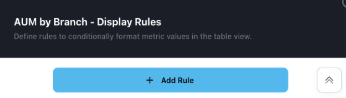
Add Rule
Select Add Rule.
Choose Column
Choose the column you want to apply styling to.
Define Conditions
Define the condition(s) that will trigger the rule.
Note: A single rule can contain multiple conditions.
Select Styling
Select the styling (e.g., badge, icon, color) to apply when the condition is met.
Apply
Click Apply. The rule will automatically save and refresh the table. The styling will immediately appear in your data table.
Types of Conditions
String Columns (Text-Based)
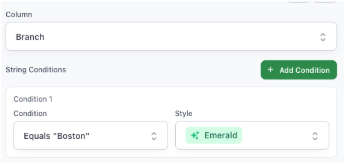
Example: Branch Name
Available Condition: Equals to
Example Usage:
If Branch = "Boston" → Apply Emerald badge
Numeric Columns (Number-Based)
Example: Household Count, Billable AUM
Available Conditions:
- * Equals to
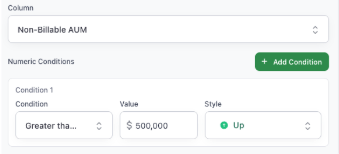
- * Less than / Greater than
- * Less than a value / Greater than a value
Example Usage:
Household Count < 300 → Apply info icon
Non-Billable AUM > 500,000 → Apply upward arrow
Managing Rules
Collapse/Expand Rules
Use the arrow icons to minimize or expand rules for easier viewing.
Persistence Across Pages
Display Rules apply globally to the selected table. If you load the same table on another page, the styling will remain consistent.
Best Practices
- Use consistent styling across rules for clarity.
- Limit the number of rules per table to maintain readability.
- Review and update rules periodically to ensure they align with your business needs.
Need Help?
Contact your Success Manager for guidance on creating effective display rules for your dashboards.