Data Management Tasks
Create and manage tasks that connect to Snowflake to process, transform, and organize your data for dashboards and reports.
What are Data Management Tasks?
Data Management Tasks allow you to create custom data processing jobs that connect directly to Snowflake. These tasks execute pre-built queries and transformations to generate the data tables that power your dashboards, reports, and analytics.
Each task links a user-friendly name and description to a specific Snowflake procedure, making it easy to track which data processes are running and which pages depend on them.
How to Access Data Management Tasks
- 1 Log in to your Milemarker account
- 2 In the left sidebar, find the Data Management section
- 3 Click on Tasks to view your task list
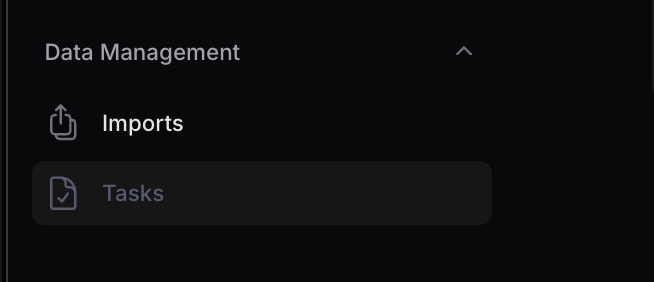
Tasks is found under the Data Management section
Viewing Your Tasks
The Tasks list shows all your configured data management tasks. From here you can search for specific tasks, create new ones, or manage existing tasks.
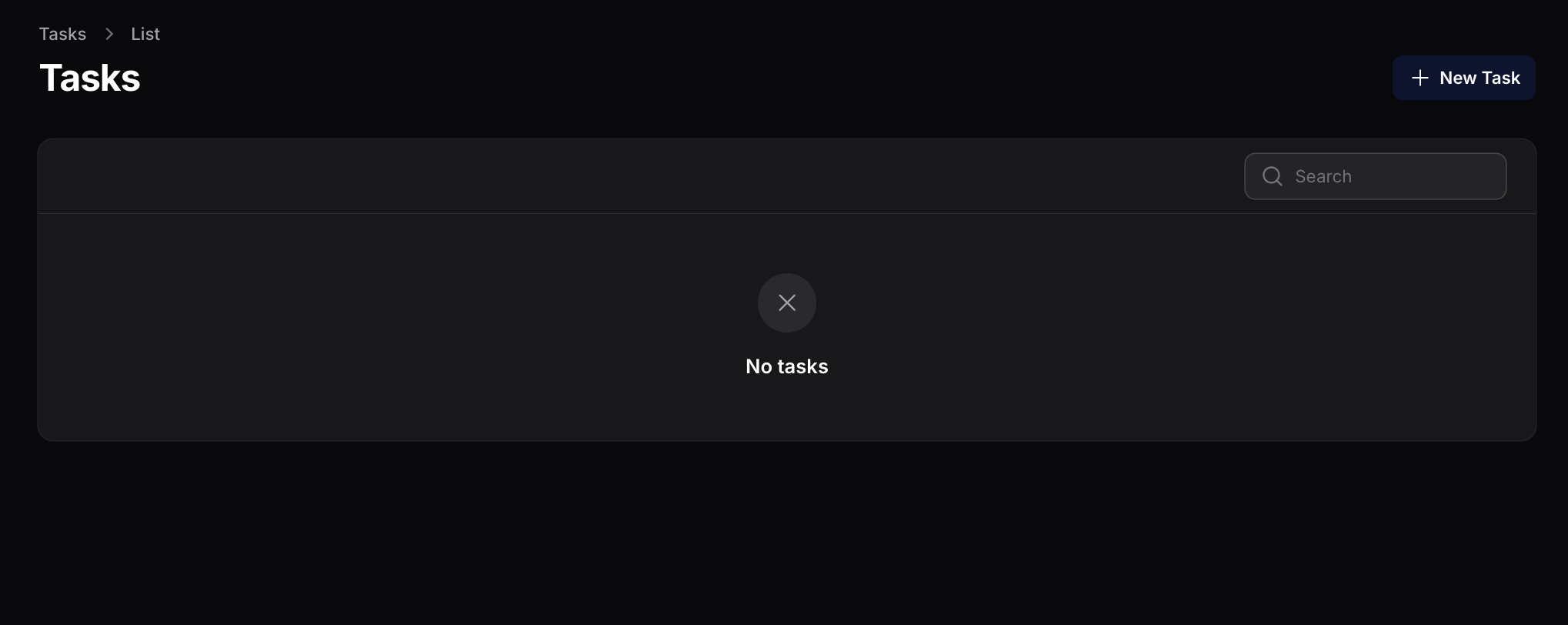
+ New Task
Create a new data management task
Search
Find tasks by name or description
Task List
View and manage all existing tasks
Creating a New Task
Click the + New Task button to create a new data management task. You'll need to fill in the following required fields:
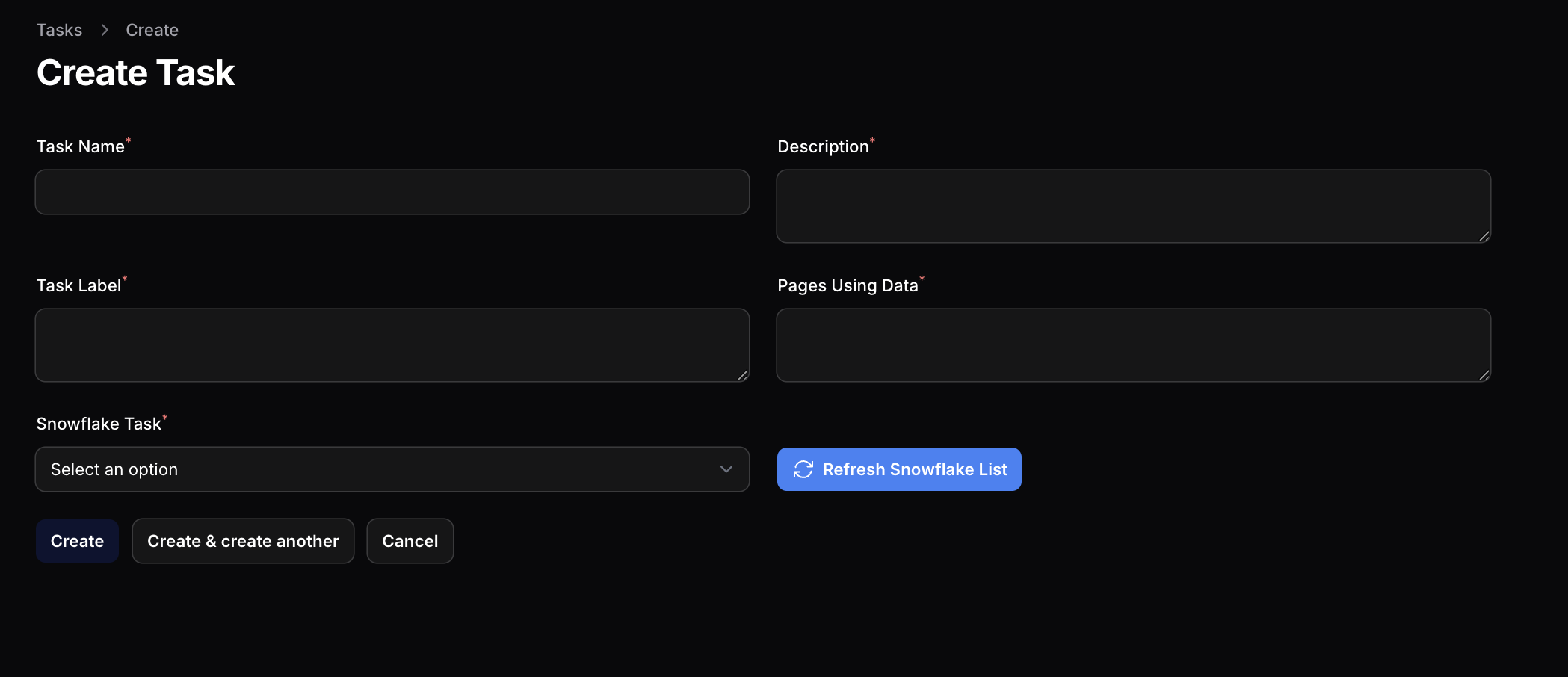
Required Fields
A clear, descriptive name for your task that identifies what it does.
A detailed explanation of what this task does and why it's needed.
A short label or tag that helps categorize and identify the task quickly.
List the dashboards, reports, or pages that depend on the data this task generates.
Select the Snowflake procedure that this task will execute.
Click Refresh Snowflake List to load the latest available tasks from your Snowflake environment.
Selecting a Snowflake Task
The Snowflake Task dropdown shows all available data procedures from your Snowflake environment. These are pre-built queries that create or update specific data tables.
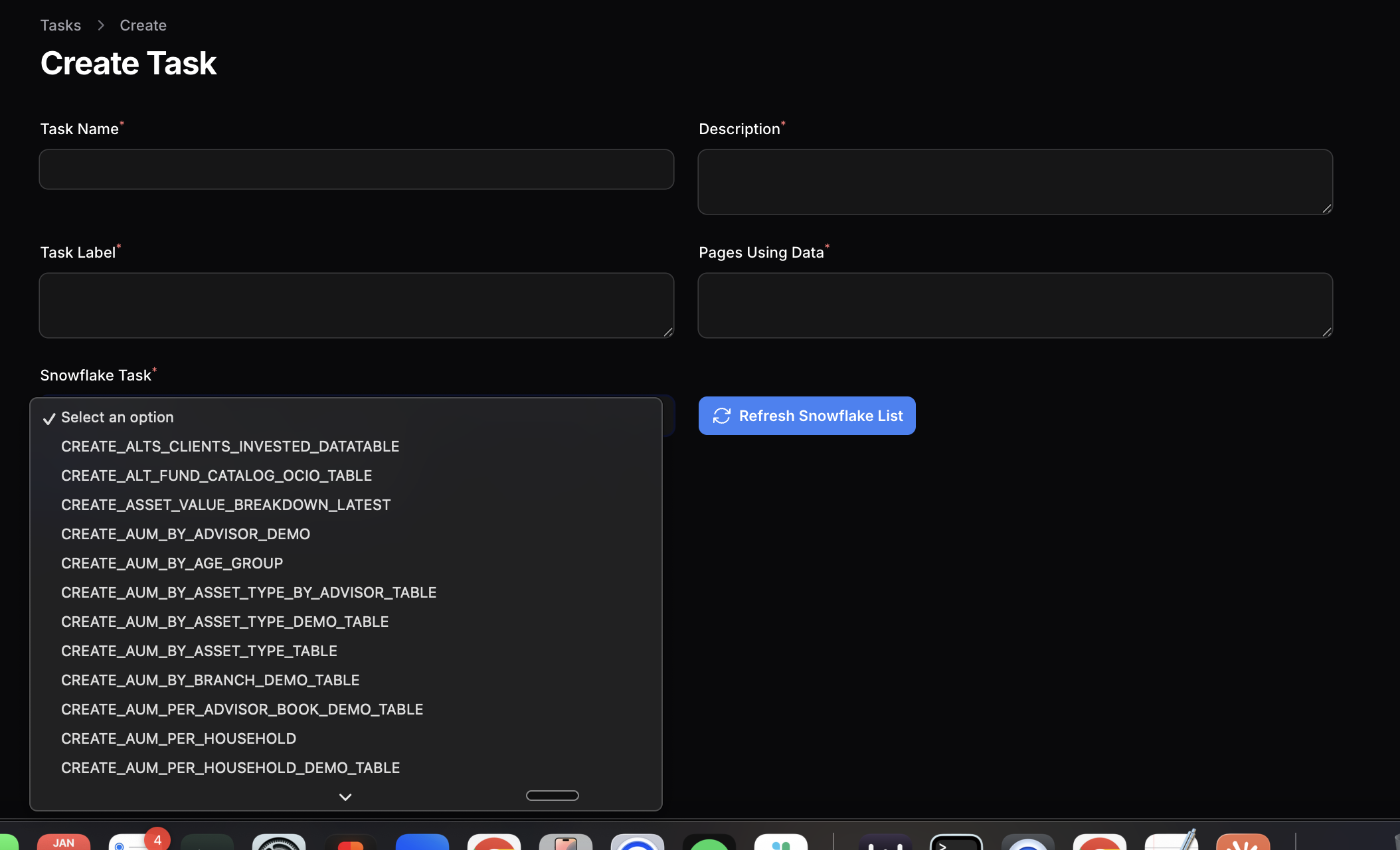
Example Snowflake Tasks
Your available tasks will vary based on your configuration, but common examples include:
Saving Your Task
Once you've filled in all the required fields, you have three options:
Save the task and return to the task list
Save the task and immediately start creating a new one
Discard changes and return to the task list
Best Practices
Use Descriptive Names
Name tasks clearly so anyone on your team can understand what they do at a glance.
Document Dependencies
Always fill in the "Pages Using Data" field to track which reports depend on each task.
Keep Labels Consistent
Use a consistent labeling scheme (e.g., "AUM", "Performance", "Client") to group related tasks.
Write Detailed Descriptions
Include data sources, expected output, and any special considerations in the description.
Common Use Cases
AUM Aggregation
Create tables that aggregate AUM by household, advisor, branch, or asset type for reporting.
Performance Calculations
Generate performance metrics and benchmarks for client portfolios and advisor books.
Client Demographics
Build data tables for client age groups, tenure, geographic distribution, and more.
Asset Breakdowns
Create asset allocation and value breakdown reports by various dimensions.